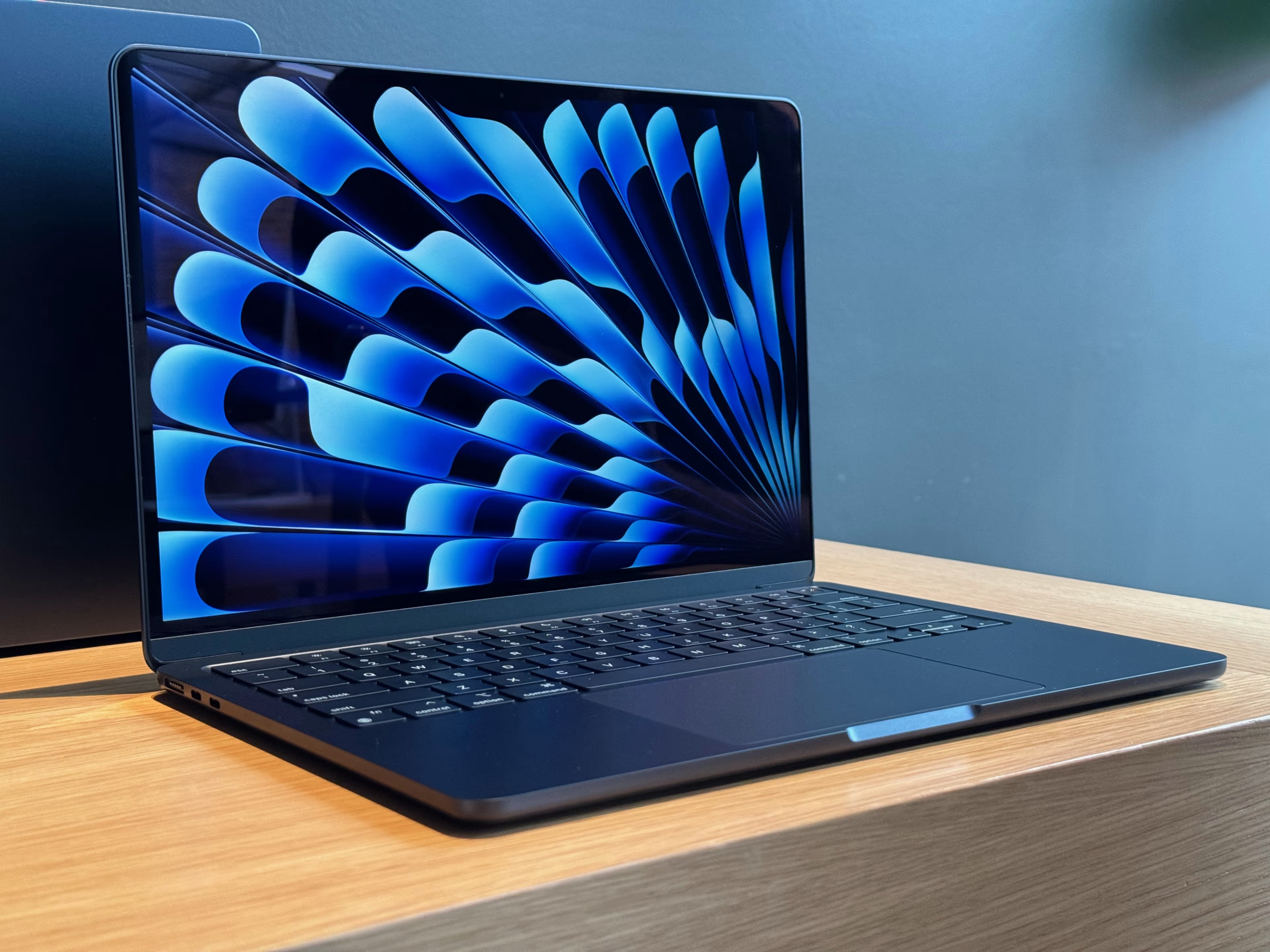
The MacBook A2338 is an Apple Silicon Mac, so the old Intel shortcut Command + R does not apply.
Use the steps below to erase and reinstall macOS correctly.
Method 1: Standard Recovery Mode (Apple Silicon)
- Shut down your Mac completely.
- Press and hold the power button (Touch ID) until Loading startup options appears.
- Release when the startup options screen appears (disk icon + gear icon).
- Click Options > Continue.
- Select your startup disk, then click Next.
- Enter an administrator password, then continue.
- In Recovery, open Disk Utility to erase your drive (if needed), then choose Reinstall macOS.
Method 2: Fallback Recovery Mode (if standard recovery fails)
If standard recovery is corrupted:
- Press the power button once (quick press and release).
- Immediately press and hold the power button again.
- Keep holding until Loading startup options appears.
This attempts booting from a secondary hidden recovery partition.
Method 3: DFU Restore (last resort)
If neither recovery method works, use DFU mode with another Mac.
Requirements
- A second Mac with macOS 10.15.6 or later
- Apple Configurator 2 installed
- USB-C to USB-C cable that supports both power and data
Steps
- Connect the A2338 to the host Mac using the left-side USB-C port closest to the screen hinge.
- On the A2338, press power, then immediately hold:
- Power
- Left Control
- Left Option
- Right Shift
Hold for exactly 10 seconds.
- Release the three modifier keys, but keep holding power until DFU appears in Apple Configurator.
- In Apple Configurator, choose Actions > Restore.
This erases the Mac and reinstalls macOS.
Quick troubleshooting checklist
- Command-R not working: Expected on Apple Silicon. Use the power-button recovery method.
- No startup options appear: Try fallback recovery (double-press power method).
- Recovery is missing/corrupted: Use DFU restore with Apple Configurator.
- Forgot admin password: You may need Apple ID recovery or DFU restore.
If the Mac was previously enrolled in MDM (company or school), activation lock policies may still apply after restore unless the device is unenrolled.